How to create an animated Google profile picture so your emails stand out
A moving logo, or a smile, beside your name in someone's inbox. Here is how to create your own, how to set it up in Gmail and Google Workspace, and the one setting that determines whether anyone sees it.
4 min read
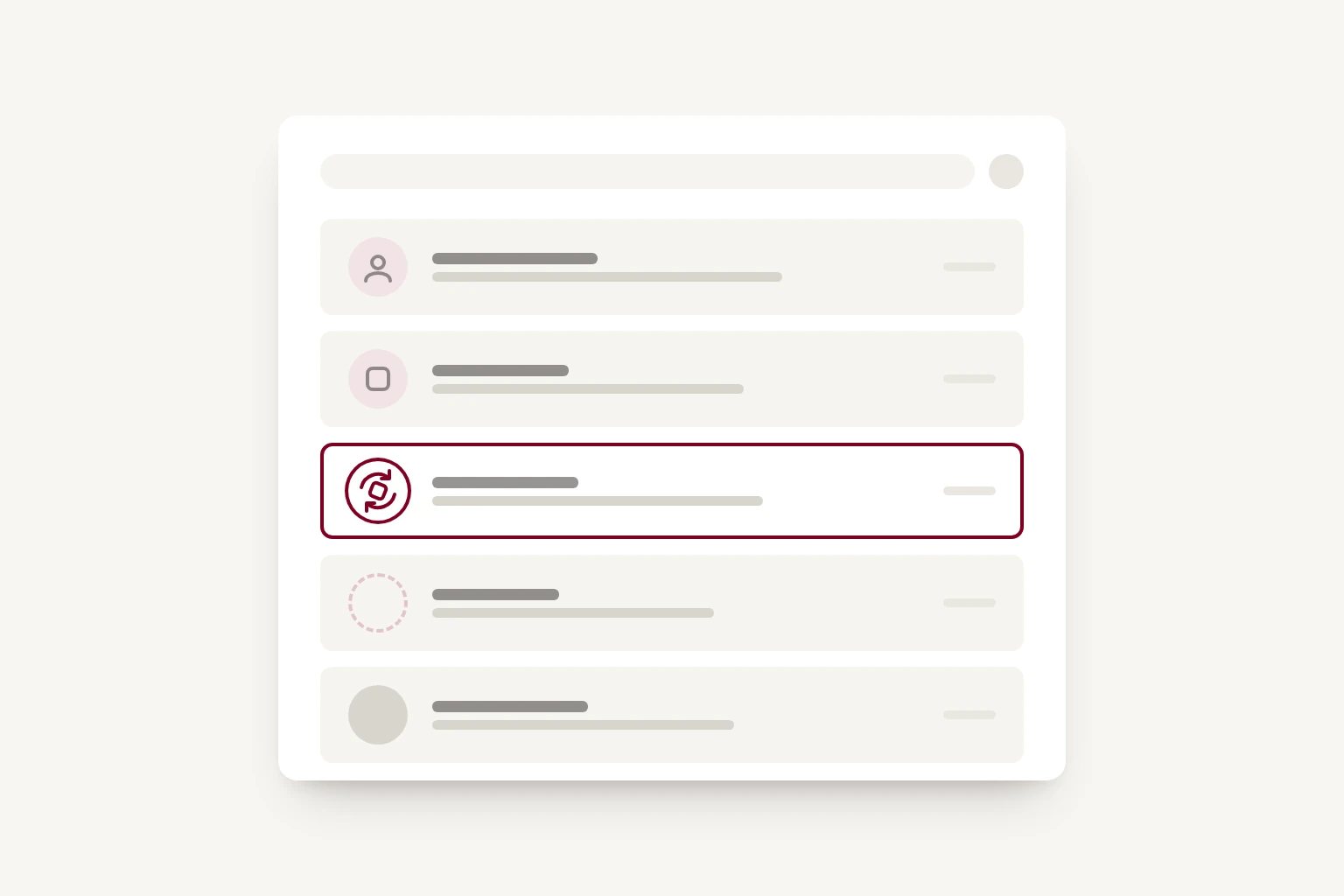
When you send an email from Gmail, the person receiving it sees a small round picture beside your name. If Google has no picture for you, or is not allowed to show it, they see a coloured circle with your first letter instead.
That circle is easy to improve on, and you can go one step further: the picture can move. Ours is the Whitespace symbol, turning one way, pausing, then turning back. Yours could be your face: a short video of you smiling, captured on your phone.
Why bother?
Some people believe a moving picture helps an email stand out in a busy inbox. We cannot promise it changes how many emails get opened. What we can say is that a clear picture tells people at a glance who an email is from, and a letter on a coloured circle tells them very little. A small, well-made detail is also a quiet signal that a business takes care over things.
It takes about 15 minutes, and it costs nothing.
1. Create the animation
You do not need design software. We asked Claude to turn our logo into a looping GIF, and ChatGPT can do the same. Upload your logo and describe what you want, for example:
"Turn this logo into a square animated GIF, 256 by 256 pixels, that loops smoothly. Spin it once to the right, pause, spin it back to the left and pause again."
A few things we learned along the way:
- Ask for 50 frames a second. Our first version, at 30, looked jerky on a fast spin.
- Make the first frame a good still. Some places only show the first frame, so it should work on its own.
- Keep it small and square. The picture is shown as a circle, so keep the important part in the middle.
A smile instead of a logo
If you would rather people see your face, record a short selfie video on your phone: two or three seconds, starting with a neutral face and ending with a smile, with the phone held still. Give it to Claude or ChatGPT and ask them to "crop this square, make it a looping GIF that plays forwards then backwards, 256 pixels". Playing it forwards then backwards means it loops without a jump.
2. Upload it from your own Google account
This is the step that caught us out. If your email runs on Google Workspace, the admin console only accepts JPG or PNG files for profile pictures, so a GIF is greyed out. Uploading it from your own account works:
- Go to myaccount.google.com and sign in with your work email.
- Choose Personal info, then Profile picture.
- Upload your GIF.
3. If you use Google Workspace, check you are allowed to change it
Some businesses only let an administrator change people's profile pictures. If you cannot upload one, ask whoever looks after your Google Workspace to turn this on. In the Google Admin console it is under Directory, Users, then More options and Allow users to edit profile, where the Photo box needs to be ticked. Google says changes can take up to 24 hours.
4. Let people outside your business see it
This is the one most people miss. When we sent our first test email to another Gmail account, it showed a "W", not our logo.
Google lets you choose who sees your profile picture. Ours was set to People that you interact with, so anyone new saw a letter. To change it:
- On the same Profile picture page, find Choose who can see your profile picture.
- Choose Anyone.
- Click Save.
Our next test email showed the logo, turning.
Where it shows
In our tests the picture moved in Gmail on the web. Not every email app shows profile pictures, and some show only the still first frame, so send a test to a few people and see. Instagram, for example, never animates profile pictures.
The small details
None of this will win you a client on its own. But people notice when a business has thought about the small things, and a picture that is yours, rather than a letter on a coloured circle, is one of them. If you would like help with the bigger things, such as a website or software built around how your business works, get in touch.